If you’ve seen the dreaded “Uconnect Device Not Supported” message on your vehicle’s screen, you’re not alone. Many drivers run into this issue when trying to connect a phone, USB drive, or other device to their car’s Uconnect system. This message can be frustrating, especially if you rely on Uconnect for hands-free calls, music, or navigation. The good news? Most “Device Not Supported” problems have clear causes and solutions. This article gives you a practical guide to understanding, troubleshooting, and resolving these issues, no matter what kind of device you’re trying to connect.
What Is Uconnect And Why Device Support Matters
Uconnect is the infotainment system used in many Chrysler, Dodge, Jeep, RAM, and Fiat vehicles. It lets you control navigation, music, phone calls, and some vehicle settings from a touchscreen or with voice commands. Uconnect also allows you to connect devices like smartphones (via Bluetooth or USB), USB drives, and sometimes even tablets or media players.
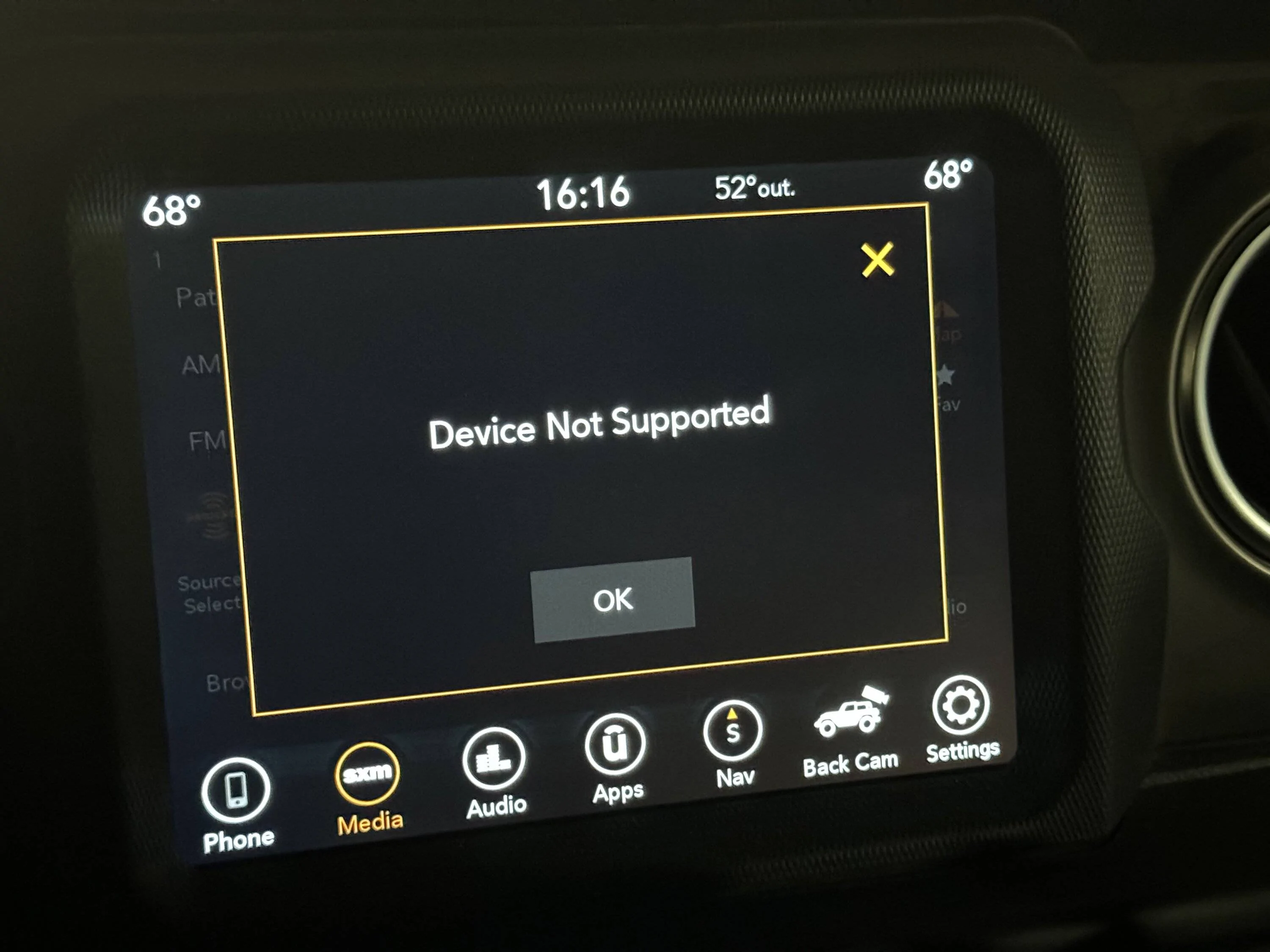
But not every device is compatible with Uconnect. The system has hardware and software limitations. When a device isn’t recognized or supported, you’ll see the “Device Not Supported” error. This can happen for several reasons, from outdated software to unsupported file formats.
Understanding why support matters is simple: without it, you can’t use many features you paid for. For example, an unsupported phone means no hands-free calling or music streaming. An unsupported USB drive means you can’t play your favorite playlists. So, solving this issue makes your driving experience safer and more enjoyable.
Common Reasons For “uconnect Device Not Supported” Errors
Several things can cause the “Device Not Supported” message. Here are the main reasons you might see this alert:
- Outdated Uconnect software – Older Uconnect versions may not recognize newer devices.
- Unsupported device models – Some phones, especially budget models or very new releases, might not work.
- Incompatible operating systems – If your smartphone’s OS is too new (or too old), Uconnect may not connect.
- USB drive format issues – Uconnect often requires USB drives to be formatted as FAT32 or exFAT.
- File type limitations – Music or media files in unsupported formats (like .flac or .m4a) won’t play.
- Bluetooth protocol mismatch – Devices must support specific Bluetooth profiles, such as A2DP for music.
- Cable quality problems – Cheap or damaged USB cables often cause connection failures.
- Too many files or folders – Uconnect has limits on the number of files/folders it can read.
- Corrupted files or drives – Damaged files can confuse the system and cause errors.
- Multiple devices connected – Sometimes, Uconnect gets confused if multiple devices are plugged in.
Knowing the reason helps you fix the problem faster. For example, if you only see the error when using a particular USB drive, it’s likely a formatting or file issue—not a Bluetooth problem.
Which Devices And File Types Does Uconnect Support?
Compatibility depends on your Uconnect version. Still, most systems follow these general rules:
Supported Smartphones
- Android phones: Usually Android 6.0 (Marshmallow) and above work best.
- IPhones: Typically iOS 10 or newer is required.
- Phones must support Bluetooth Hands-Free Profile (HFP) for calls, and A2DP for music.
Supported Usb Drives
- File system: FAT32 or exFAT recommended (NTFS is often not supported).
- Storage size: Most Uconnect units support up to 32GB or 64GB.
- USB version: USB 2.0 is safest; USB 3.0 sometimes works, but not always.
- File limits: Usually up to 8 folder levels and 255 files per folder.
Supported File Formats
- Audio: MP3, WMA, AAC (varies by vehicle/year)
- Video: Only in some rear-seat entertainment systems, and with parking brake on
- Images: JPEG for display backgrounds
Here’s a quick comparison of how Uconnect handles different USB drive formats:
| File System | Supported? | Notes |
|---|---|---|
| FAT32 | Yes | Most reliable for music/playback |
| exFAT | Yes (newer units) | For drives over 32GB |
| NTFS | No | Usually not recognized |
Diagnosing The Problem: Step-by-step
If you see “Device Not Supported,” here’s how to quickly narrow down what’s wrong:
- Check the device type – Is it a phone, USB, or something else? Try connecting a different device to see if the error remains.
- Test the cable/connection – Use a different USB cable or try a different USB port. Cheap cables are a common cause.
- Update device software – Make sure your phone’s OS or your USB drive’s files aren’t too old or too new.
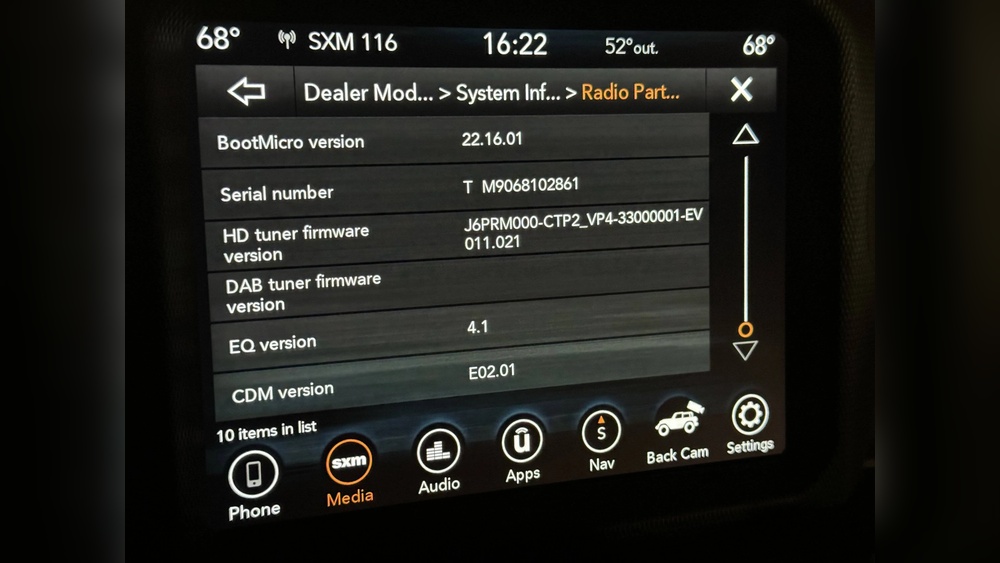
- Check Uconnect software version – Go into Uconnect settings and look for “System Information.” If your version is old, update it.
- Format the USB drive – Back up your files, then reformat the drive as FAT32. Reload only a few music files as a test.
- Try different files – Play a basic MP3. If that works, your original files might be in an unsupported format.
- Remove other devices – Unplug everything except the device you’re testing.
- Restart Uconnect – Sometimes, just turning the car off and on resets the system.
Many drivers overlook steps like checking the file system format or updating Uconnect software. These are two of the most common fixes.
How To Fix “uconnect Device Not Supported”: Solutions For Each Device
Fixing Smartphone Connection Issues
- Check for software updates on your phone and Uconnect system.
- Enable Bluetooth visibility on your phone.
- Delete old pairings from both Uconnect and your phone, then pair again.
- Use an original or high-quality USB cable (for wired connection).
- Restart both devices after pairing.
- Make sure your phone supports required Bluetooth profiles like HFP and A2DP.
- Try a different phone – if it works, your main phone may be the issue.
Example
Let’s say your Samsung Galaxy S23 won’t connect, but your friend’s iPhone 12 works fine. This suggests a compatibility issue between Uconnect and your Samsung, or a problem with the phone’s software. Try updating your phone, or check if the S23 is officially supported by your car’s Uconnect version.
Fixing Usb Drive Problems
- Back up your files and reformat the USB drive to FAT32.
- Load only a few MP3 files first and test.
- Avoid complex folder structures; keep files in the root directory or only 1–2 folders deep.
- Rename files with simple names (no special characters).
- Try a smaller USB drive (8GB or 16GB) if your current one is large.
- Don’t use USB 3.0 drives if possible—stick with USB 2.0 for better compatibility.
Example
If your 64GB USB drive with hundreds of folders doesn’t work, reformat it as FAT32 and only put 10–20 MP3 files in the root folder. Try again—if it works, add more files slowly until you find the limit.
Fixing Bluetooth Issues
- Clear paired devices on both Uconnect and your phone.
- Keep the phone close to the system during pairing.
- Turn off Wi-Fi on your phone during Bluetooth pairing; sometimes, Wi-Fi interferes.
- Update Uconnect software if you haven’t recently.
- Try pairing in a different car to see if your phone is the problem.
Fixing App And Carplay/android Auto Issues
Not all Uconnect units support Apple CarPlay or Android Auto. If you’re trying to use these features:
- Check if your car’s Uconnect supports CarPlay/Android Auto. Not every model does.
- Use the original USB cable.
- Make sure the feature is enabled in your Uconnect settings.
- Update your phone’s OS to the latest version.
- Restart the Uconnect system if you have problems.
Here’s a quick look at which Uconnect versions support CarPlay/Android Auto:
| Uconnect Version | CarPlay Support | Android Auto Support |
|---|---|---|
| Uconnect 3 (5-inch) | No | No |
| Uconnect 4 (7-inch) | Yes | Yes |
| Uconnect 5 (10.1-inch) | Yes (wireless) | Yes (wireless) |
If your Uconnect version doesn’t support these features, you won’t be able to use them—no fix is possible except upgrading your system.
When To Update Uconnect Software
An outdated Uconnect system is a common reason for device problems. Here’s when you should update:
- After buying a used car (previous owner may not have updated)
- When you get a new phone that won’t connect
- If you notice new features or apps you want to use
- When you see bugs or random disconnects
You can check for updates on the Uconnect website. Some updates require a visit to the dealership; others you can install from a USB drive.
How To Update Uconnect
- Get your VIN (Vehicle Identification Number).
- Visit the official Uconnect update site.
- Enter your VIN to check for updates.
- If an update is available, download it to your computer.
- Copy the update file to a blank USB drive.
- Plug the USB drive into your car and follow on-screen instructions.
Always keep your car running during the update. Never shut off the engine or remove the USB drive until the process finishes.
Advanced Troubleshooting: Less Obvious Fixes
Some Uconnect issues are trickier. Here are tips most beginners miss:
- Try another USB port – Many cars have multiple ports, and not all are designed for media. The port in the center console usually works best.
- Check for device limits – Some Uconnect systems can only pair with a certain number of phones (often 10). Delete old pairings if you hit the limit.
- Reset to factory settings – As a last resort, do a full reset from the Uconnect settings menu. This wipes all personal data but can clear out software glitches.
- Avoid using hubs or splitters – Plug devices directly into Uconnect, not through USB hubs or adapters.
- Test for power issues – Some larger USB drives or phones need more power than the car’s USB port provides. Try a smaller drive or a powered adapter.
Device Compatibility Table: Popular Devices And Uconnect
Here’s how some popular devices fare with different Uconnect versions:
| Device | Uconnect 3 | Uconnect 4 | Uconnect 5 |
|---|---|---|---|
| iPhone 13 | Partial (Bluetooth only) | Full (CarPlay) | Full (CarPlay) |
| Samsung Galaxy S22 | Partial (Bluetooth only) | Full (Android Auto) | Full (Android Auto) |
| SanDisk 32GB USB (FAT32) | Yes | Yes | Yes |
| SanDisk 128GB USB (NTFS) | No | No | No |
This table highlights the importance of using the right device and format for your Uconnect system.

Preventing Future “device Not Supported” Errors
To avoid future frustration, keep these best practices in mind:
- Always check device compatibility before buying a new phone or USB drive.
- Keep Uconnect and your devices updated with the latest software.
- Use high-quality cables and accessories.
- Stick to supported file types and formats for music and media.
- Organize your USB drive with simple folder structures and file names.
- Disconnect devices you’re not using to prevent confusion.
If you’re buying a used car, ask the seller about any Uconnect issues or updates. For new cars, request a Uconnect demonstration from the dealer.
When To Seek Professional Help
Sometimes, you might do everything right and still see “Device Not Supported.” In these cases:
- Visit your dealer for a Uconnect diagnostic. Sometimes the system hardware has failed or needs a factory reset.
- Contact Uconnect support for advice. They may know about compatibility issues with your specific device.
- Ask about warranty coverage if your Uconnect unit is still under warranty.
Don’t waste hours if you suspect a hardware problem—get professional help sooner rather than later.
Non-obvious Insights Most Drivers Miss
- Not all USB ports are equal: Many cars have ports just for charging, not for data. Always test in the main port (usually inside the center console).
- Uconnect may need “indexing time”: After plugging in a new USB drive, Uconnect might take several minutes to scan (“index”) all files. If you unplug too soon, it may never finish.
- Aftermarket devices can cause issues: If you’ve added a third-party stereo or other gadgets, they might interfere with Uconnect. Try removing them if you see repeated errors.
Frequently Asked Questions
Why Does My Uconnect Say “device Not Supported” After An Update?
After a Uconnect update, some devices may need to be re-paired or reformatted. Updates can change which devices are supported, especially if security features or file format requirements have changed. Try deleting old pairings or reformatting your USB drive as FAT32, then reconnect.
How Do I Know If My Phone Is Compatible With Uconnect?
You can check compatibility by visiting the Uconnect website or your vehicle’s manual. Most modern iPhones and Android phones are supported, but very new or very old models may have issues. Your phone must support Bluetooth HFP for calls and A2DP for music.
Can I Use A Usb Hub Or Splitter With Uconnect?
It’s not recommended. Most Uconnect systems don’t support USB hubs or splitters, and you’ll often see errors. Always plug your device directly into the main Uconnect USB port for best results.
What File Formats Does Uconnect Support For Music?
Most Uconnect systems support MP3, WMA, and AAC files. Some may play WAV or FLAC, but that’s rare. Always use MP3 for maximum compatibility, and keep file names simple.
Where Can I Find Official Information About Uconnect Updates And Supported Devices?
The most reliable source is the official Uconnect website. For more details, visit Uconnect Support.
Whether you’re dealing with a stubborn phone or a picky USB drive, understanding what Uconnect supports—and what it doesn’t—can save you time and hassle. By following the steps and tips in this guide, you’ll get your devices working smoothly, so you can enjoy your car’s full set of features on the road.