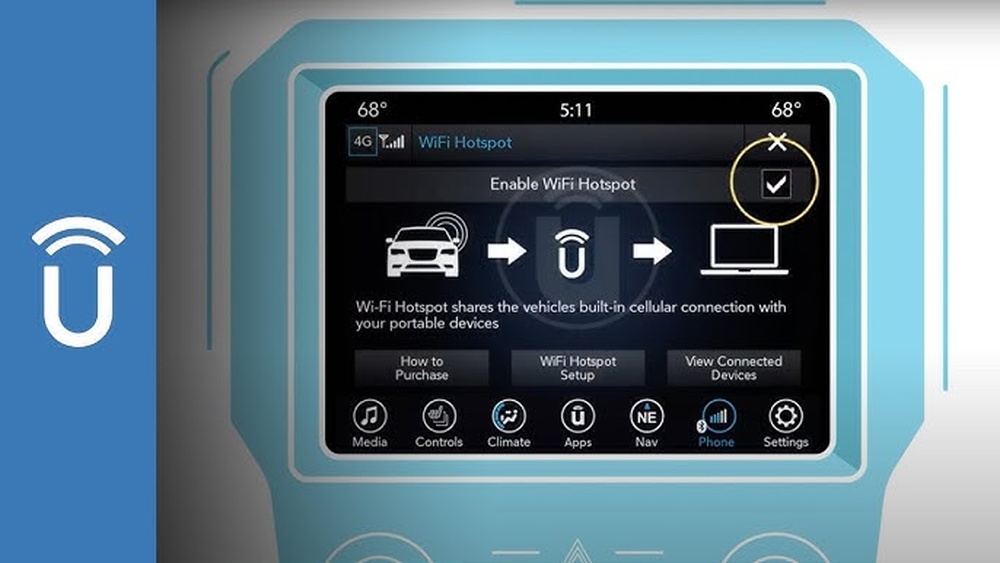
When your Uconnect WiFi hotspot stops working, it can turn a smooth drive into a frustrating experience. Many drivers rely on this feature to stay connected, stream music, or let passengers browse online during trips. But what happens when your hotspot suddenly fails? Whether you’re on a long road trip or commuting daily, knowing how to fix or prevent hotspot issues is essential. This guide gives clear steps, practical advice, and answers to common questions—all in simple, direct English. Let’s get your Uconnect WiFi working again.
Understanding Uconnect Wifi Hotspot
Uconnect is a popular infotainment system found in many Chrysler, Dodge, Jeep, and Ram vehicles. The WiFi hotspot feature allows you to connect multiple devices to the internet through your car’s cellular connection. Usually, you can link smartphones, tablets, and laptops, making the vehicle a mobile office or entertainment hub.
Most Uconnect WiFi hotspots run on AT&T’s network in the US, providing coverage where cell service is available. The hotspot is activated through a subscription plan, which you can manage online or via your Uconnect app.
Common Use Cases
- Streaming music or videos
- Accessing navigation apps
- Letting kids use tablets
- Sending emails on laptops
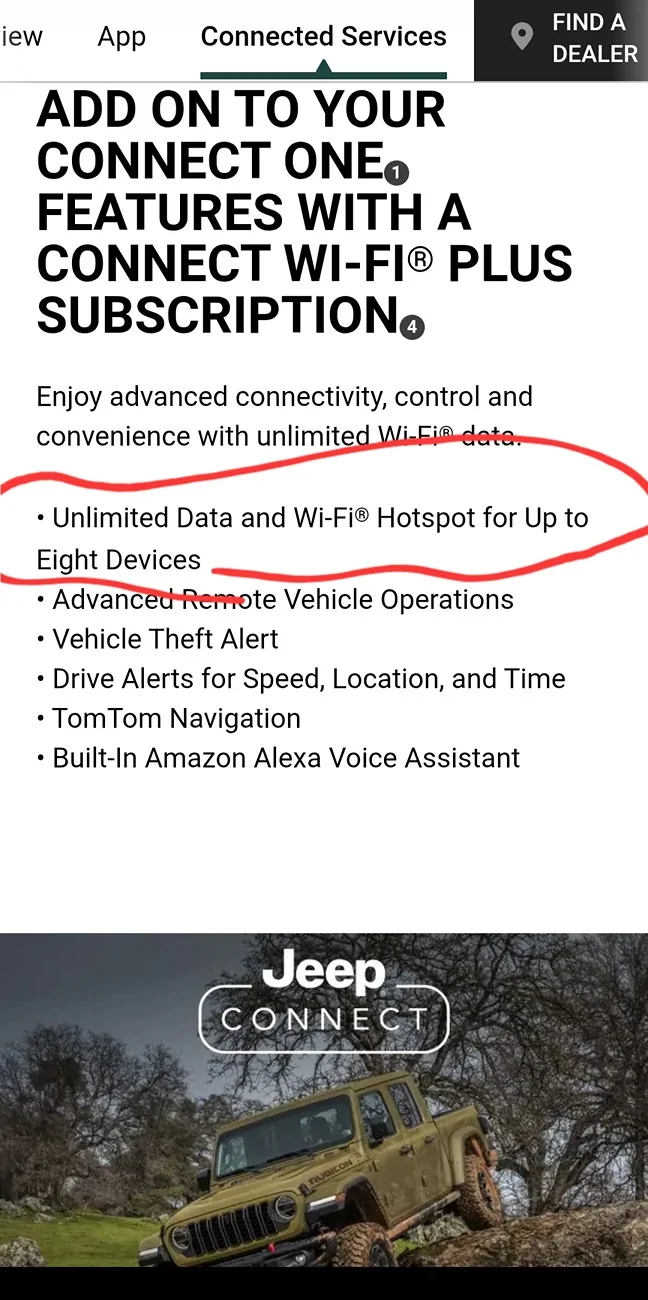
You can connect up to 8 devices, but actual speed depends on signal quality and the number of users.
Why Your Uconnect Wifi Hotspot May Not Work
There are several reasons your Uconnect WiFi hotspot might fail. Understanding the root cause helps you fix the problem faster.
1. Poor Cellular Signal
If your car is in a rural area, underground parking, or surrounded by tall buildings, the cellular signal may be weak. Without a stable connection, the hotspot can’t supply internet.
2. Subscription Issues
The hotspot requires an active plan. If your subscription has expired, been canceled, or payment failed, the WiFi will stop working.
3. System Software Glitches
Sometimes, the Uconnect system needs a restart or update. Software bugs can block WiFi function or cause intermittent problems.
4. Incorrect Settings
Misconfigured hotspot settings, like WiFi being disabled or the wrong password, can prevent devices from connecting.
5. Device Compatibility
Not all devices work smoothly with vehicle hotspots. Outdated software, incompatible WiFi bands, or device limits can cause connection failures.
6. Network Congestion
If too many devices are connected, or if you’re in a crowded area with heavy cell traffic, speeds may drop or the hotspot may disconnect.
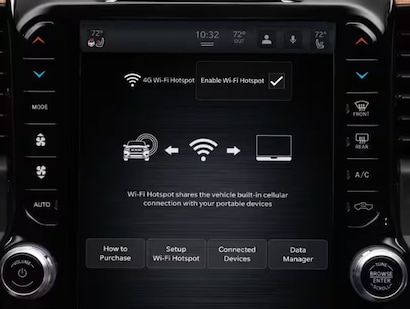
Step-by-step Troubleshooting Guide
Let’s walk through practical steps to diagnose and fix your Uconnect WiFi hotspot.
1. Check Cellular Signal Strength
Look at your Uconnect screen. Is the signal bar low or missing? If yes, move the vehicle to an area with better coverage. Sometimes, even a few hundred feet can make a difference.
2. Verify Your Subscription
Log into your Uconnect account or the AT&T portal. Check if your plan is active. If not, renew or update payment details. Many users overlook this simple step.
3. Restart Uconnect System
Turn the vehicle off completely, wait 2–3 minutes, then restart. For some models, you can reboot Uconnect by pressing and holding the power button and volume knob together for about 10 seconds. This often clears minor software issues.
4. Update Uconnect Firmware
Go to Settings > System Updates. If an update is available, install it. Keeping software current prevents bugs and improves compatibility.
5. Review Hotspot Settings
Double-check:
- WiFi is enabled
- SSID (network name) is visible
- Password is correct
- Maximum device limit (usually 8)
Try connecting a different device to see if the issue is device-specific.
6. Forget And Reconnect
On your device, remove the Uconnect WiFi network, then reconnect using the correct password. This fixes many connection errors.
7. Test Multiple Devices
Try connecting phones, tablets, and laptops. If only one device fails, the problem may be with that device—not the hotspot.
8. Reset Network Settings
If nothing works, reset the network settings in your Uconnect system. Check your manual for model-specific instructions.
9. Contact Support
If the above steps fail, call Uconnect customer support or visit your dealership. They can diagnose hardware issues or replace faulty parts.
Comparing Uconnect Wifi Vs Other Car Hotspots
Many drivers wonder how Uconnect stacks up against competitors like OnStar or Ford SYNC. Here’s a quick comparison:
| Feature | Uconnect WiFi | OnStar (GM) | Ford SYNC |
|---|---|---|---|
| Max Devices | 8 | 7 | 10 |
| Network Provider | AT&T | AT&T | AT&T |
| Coverage | US/Canada | US/Canada | US/Canada |
| Subscription Cost | $20/month | $25/month | $20/month |
| Setup Difficulty | Easy | Easy | Easy |
| Typical Speed | Up to 4G LTE | Up to 4G LTE | Up to 4G LTE |
Uconnect offers similar coverage and speeds, but device limits and subscription prices may vary.

Real-life Examples Of Uconnect Wifi Issues
Let’s look at some common situations:
Road Trip Drops
A family drives across rural Texas. Their Uconnect WiFi works well in cities, but disconnects often outside urban areas. The cause: weak cell signal.
Forgotten Subscription Renewal
A business user relies on Uconnect for work emails. One day, the hotspot stops working. Checking the portal shows the subscription expired.
Password Change Confusion
After changing the WiFi password in Uconnect settings, none of the devices connect. The driver forgot to update the password on each device.
Firmware Update Needed
A Jeep owner notices their WiFi disconnects every hour. After updating Uconnect software, the problem disappears.
These examples show how signal, settings, and subscriptions are the most frequent causes.
Preventing Uconnect Wifi Hotspot Problems
Staying ahead of issues is easier than fixing them on the road. Here’s how to keep your hotspot reliable:
1. Keep Subscription Active
Set a calendar reminder for renewal dates. Enable auto-renew if possible.
2. Update System Software
Check for updates every few months. Outdated firmware is a common cause of bugs.
3. Use Strong Passwords
Avoid simple passwords like “12345678. ” Change the password regularly for security.
4. Limit Device Connections
Don’t connect more devices than needed. Extra users can slow the network or cause drops.
5. Monitor Signal Strength
If you travel often, know where coverage is weak. Plan routes or stops accordingly.
6. Test Before Long Trips
Connect a device and run a speed test before leaving. Catch problems early.
Uconnect Wifi Hotspot Data Usage And Limits
Understanding how much data you use can prevent surprises on your bill.
Typical Data Usage
Streaming one hour of HD video uses about 1–1. 5GB. Browsing the web for an hour uses roughly 60MB. Multiple devices increase usage quickly.
Subscription Data Limits
Most plans offer 5–22GB per month, but unlimited plans are available for a higher price. Check your plan details in your account.
What Happens When You Hit Your Limit
Data speeds may slow down, or the hotspot may cut off until next billing cycle. Always monitor your usage.
| Activity | Approximate Data Used per Hour |
|---|---|
| HD Video Streaming | 1–1.5GB |
| Music Streaming | 40–50MB |
| Web Browsing | 60MB |
| Online Gaming | 100MB |
Advanced Troubleshooting For Persistent Issues
If your hotspot still doesn’t work, try these deeper steps:
1. Check Sim Card
Some Uconnect systems use a SIM card for cellular. Remove and reinsert it carefully. If dirty, clean gently with a dry cloth.
2. Factory Reset Uconnect
This will erase all custom settings. Go to Settings > Restore Factory Defaults. Only do this if all else fails.
3. Test With Another Sim
If you have access, try a different SIM card to rule out hardware failure.
4. Inspect Antenna
A damaged antenna can weaken signal. Look for signs of damage or corrosion. Ask a technician if unsure.
5. Dealer Diagnostic Tools
Dealerships have advanced scanners to check Uconnect modules. If your car is under warranty, this is often free.
Comparing In-car Wifi To Smartphone Hotspots
Is Uconnect WiFi better than using your phone as a hotspot? Here’s a quick comparison:
| Feature | Uconnect WiFi | Phone Hotspot |
|---|---|---|
| Coverage | Depends on vehicle’s antenna | Depends on phone’s antenna |
| Battery Impact | No battery drain | Phone battery drains quickly |
| Device Limit | Up to 8 | Usually 5 |
| Convenience | Always on | Manual setup each time |
| Data Cost | Separate car plan | Uses phone data |
Uconnect WiFi is often more convenient for families or business users, but phone hotspots are useful for occasional needs.
Common Mistakes When Using Uconnect Wifi
Even experienced users sometimes miss simple things. Here are mistakes to avoid:
- Ignoring subscription renewals – Always check your plan status.
- Using weak passwords – This can let strangers connect.
- Connecting too many devices – This slows down or disconnects the hotspot.
- Forgetting firmware updates – Outdated software causes glitches.
- Assuming coverage everywhere – Rural and underground areas may lack signal.
- Failing to restart the system – A quick reboot solves many small issues.
The Role Of At&t In Uconnect Wifi
AT&T provides the cellular network for most Uconnect WiFi plans in the US. Coverage depends on AT&T’s signal, not your car’s location. If AT&T has weak coverage in your area, the hotspot won’t work well. To check coverage maps, visit the AT&T website.
Some vehicles outside the US may use different providers. Always check your owner’s manual for details.
Security Tips For Uconnect Wifi Hotspot
Keeping your hotspot secure protects your data and privacy.
1. Change Password Regularly
Don’t keep the default password. Use a mix of letters and numbers.
2. Hide Ssid
If your car allows, hide the network name so only people you trust can find it.
3. Disconnect Devices Not In Use
Remove unknown devices from the network list.
4. Watch For Suspicious Activity
If your WiFi is slow or data usage spikes, check for unauthorized users.
Uconnect Wifi Hotspot And Vehicle Updates
Some major software updates may reset WiFi settings or cause temporary glitches. After any update, check that your hotspot is enabled and configured correctly.
If your vehicle receives over-the-air updates, follow instructions carefully. Wait for the update to finish before using WiFi.
When To Visit The Dealership
If you’ve tried all troubleshooting steps and your WiFi still won’t work, it’s time to visit your dealership. They can check for hardware failures, antenna problems, or deeper software bugs.
Warranty Coverage
If your car is still under warranty, repairs may be free. Always ask before agreeing to any paid work.
What To Bring
- Vehicle registration
- Proof of subscription
- Description of the problem
- List of troubleshooting steps you’ve tried
This helps the technician solve your issue faster.
Uconnect Wifi Hotspot Future Trends
In-car WiFi is becoming more advanced. New models offer 5G connectivity and better coverage. Data plans are getting cheaper and more flexible. Some cars can even switch between providers for stronger signal.
In the next few years, expect faster speeds and more reliable hotspots. Manufacturers are focusing on seamless integration with smart devices and apps.
For more details on automotive WiFi technology, you can check AT&T Connected Car.
Frequently Asked Questions
Why Is My Uconnect Wifi Hotspot Not Showing Up?
If your WiFi network is missing from available devices, check that WiFi is enabled in Uconnect settings. Also, look for hidden SSID options. Restarting the system often helps.
How Many Devices Can Connect To Uconnect Wifi?
Most Uconnect hotspots support up to 8 devices at once. Connecting more may slow down speeds or cause disconnects.
Does Uconnect Wifi Work Everywhere?
No, it depends on cellular coverage. Rural areas, tunnels, and underground parking often have weak or no signal. Coverage is based on the network provider, usually AT&T in the US.
Can I Use Uconnect Wifi Without A Subscription?
No, you need an active subscription for the hotspot to work. Without a plan, the WiFi feature is disabled.
Is Uconnect Wifi Secure?
Yes, if you use strong passwords and manage device access. Change the default password and monitor connected devices for best security.
Getting your Uconnect WiFi hotspot working again is usually straightforward if you follow the right steps. Whether it’s a simple setting, a subscription lapse, or a software bug, you can solve most issues quickly. Stay proactive, keep your system updated, and check coverage maps before trips.
With these tips, your car can stay reliably connected—making every drive more enjoyable and productive.